 These days we are pampered for storage space. With game-changing inventions like perpendicular recording, hard disks have comfortably hit the terabyte mark. Add to that, smarter manufacturing processes have driven down costs to the 15-cents-per-gigabyte level! Inevitably, the urge to fill these digital storehouses kicks in, and it isn't long before we find ourselves throwing in movie files that weigh in at a few gigabytes, or copying hundreds of MP3s--all of which quickly eat up those gobs of storage space. The answer to this? Add more storage space of course. It's so cheap, after all.
But there's a bigger concern here--bringing some semblance of order and sanity to all those media files. Let's talk about movie files--the good old DivX format can compress a movie while keeping the audio and video quality surprisingly close to the original DVD. Little wonder that DivX (or XviD) movies are so popular these days. Of course, movie piracy is illegal. But you already knew that, right? With that mandatory warning out of the way, let's talk about managing these DivX movies.
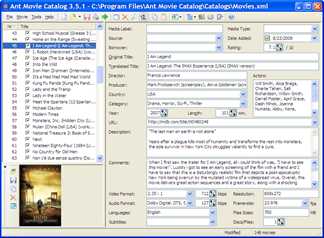 You will find several tools (both commercial and freeware) that can help bring order to your ever-expanding movie collection. These applications typically let you catalog your movies, download descriptive information (actors, director, release year, review, cover artwork and more). After cataloging your movies, you can search, query, or export the listing. Some cataloging applications even help you track rentals, so you'll always know where your movie DVDs are. You can even catalog your movies across different media--DVD, DivX and even VHS or Blu-ray. I've tried several applications, but have had the best experience with ANT Movie Catalog. This is a capable, feature-rich software that has all the capabilities listed above, and then some. And it's free.
Once you install and start the software, you'll pretty much see a blank interface. That's because you'll first need to add movies to your database. Here's the quickest way to do this.
- Press 'ALT+Ins' to create a new movie entry.
- Locate the DivX movie file on your hard disk, and drag-and-drop this file into the main program interface. The application reads the video information (resolution, running time, resolution etc) and populates the relevant fields in the new record.
- In the 'Original Title' field (the fourth field from the top), type in the title of the DivX movie you just added.
- Next, press the 'F6' function key. This opens the scripting dialog box. Locate the 'IMDB' script. Never mind the many others: IMDB should suit your needs fine. Hit 'Enter'. Verify that the movie name is typed correctly, and hit 'Enter' again. If you're connected to the Internet, the program will pull down the relevant movie information. If it finds duplicate movie names, you can select the correct one.
- After the import is finished, you will see all the corresponding movie information in the respective fields. Now hit 'CTRL+S' to save your updated database. I save my database in the XML format, and store choose to store movie artwork as separate files. You will see this option while saving.
- By default, new movies are added to the bottom of the list. You can re-sort your movie list by name. Do this by clicking 'Tools', then 'Renumber'. Select the mode of sorting ('Original Title' works best), and hit 'Ok'.
There is no direct way to import several movies into the ANT catalog at one go. However, you can use the technique described here to achieve this result. Use this method to import all your DivX movies the first time you use ANT. Be sure to check out this application's other cool features in the 'Tools' section, such as the Statistics and Loans.

 These days we are pampered for storage space. With game-changing inventions like


